
Describe what you want to generate
Select or drop multiple images, up to 16. JPG, PNG or WebP; 10 MB each.
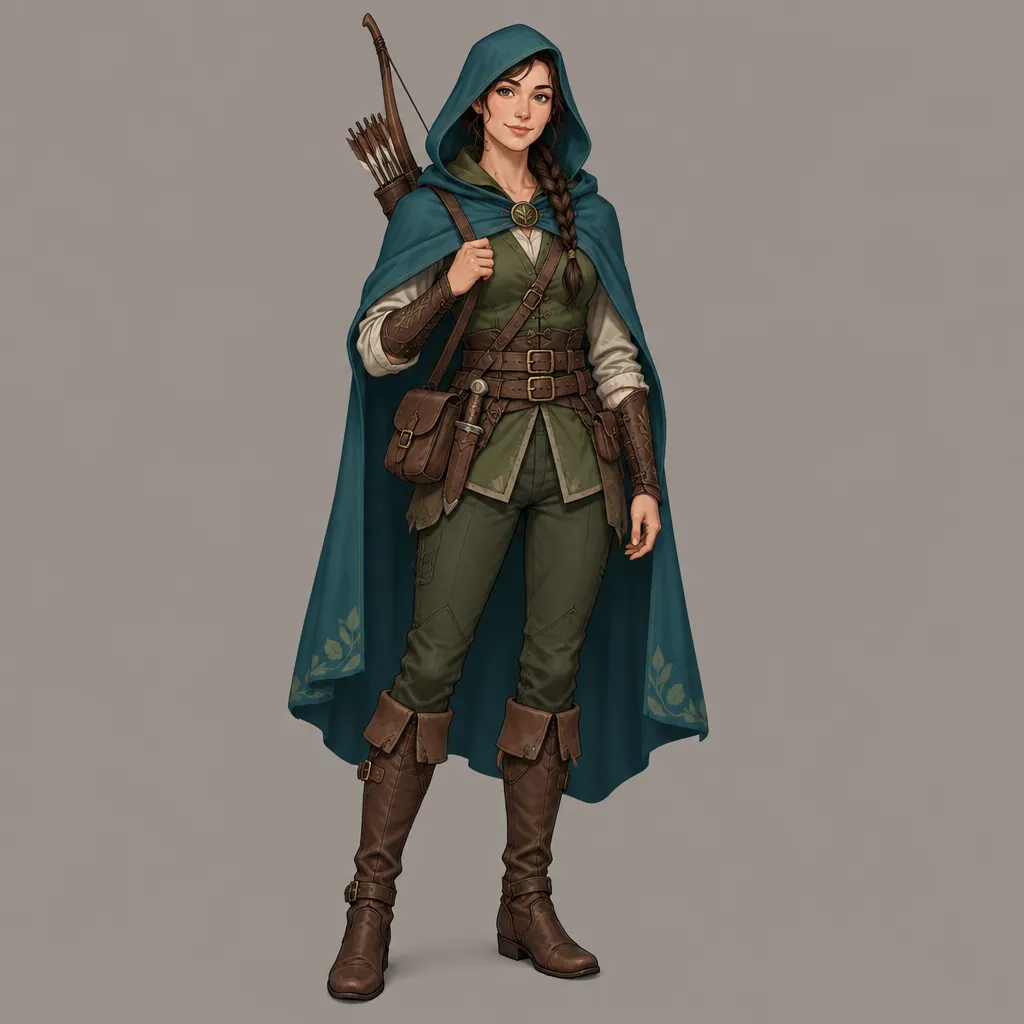
Create and Edit with GPT Image 2.5 Flare or Sunburst
Turn a creative brief into campaign visuals, product scenes, character concepts and transparent assets with GPT Image 2.5. Explore directions with Flare or choose Sunburst for carefully controlled edits. Combine text, up to 16 reference images and an optional mask, then set size, quality and background for one PNG per request.
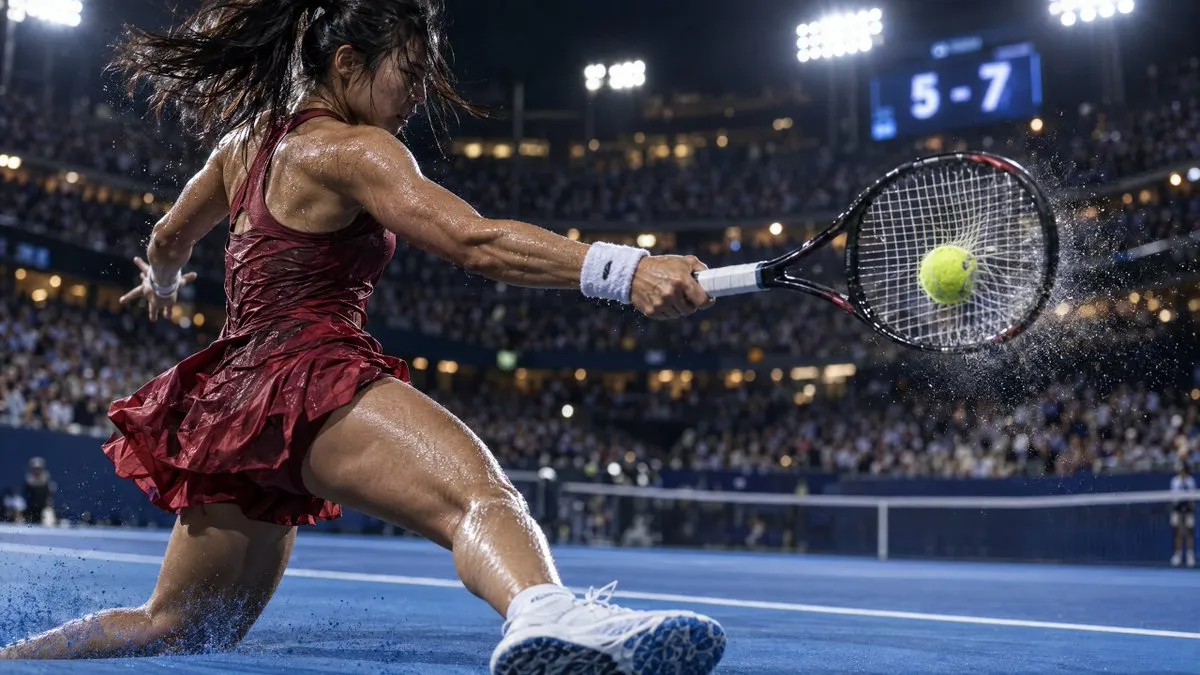
Give an advertising concept a concrete composition
Explore launch artwork, event posters and social covers. Use Flare to try subject placement, motion and color before refining the chosen direction. If a later edit needs to preserve a specific product appearance, upload a reference and describe the details to retain.
Prompt by deliverable
Name the asset type and publishing context first, then describe the visible subject, hierarchy, lighting, palette, copy, and exclusions.
Example prompt: sports campaign
“Create a 4:5 running-shoe advertisement. Float the shoe in the center of a deep blue background, sole facing the camera, with orange rim lighting and a small splash below. Leave room for a headline at the top. Add no logos or text.”
Move from draft to delivery
Start at 1K and medium quality to assess the composition. Adjust quality and resolution once the direction works. To carry the same shoe into another image, upload the approved draft and name the silhouette, colors and materials that should stay consistent.
Keep a recognizable character while exploring new poses
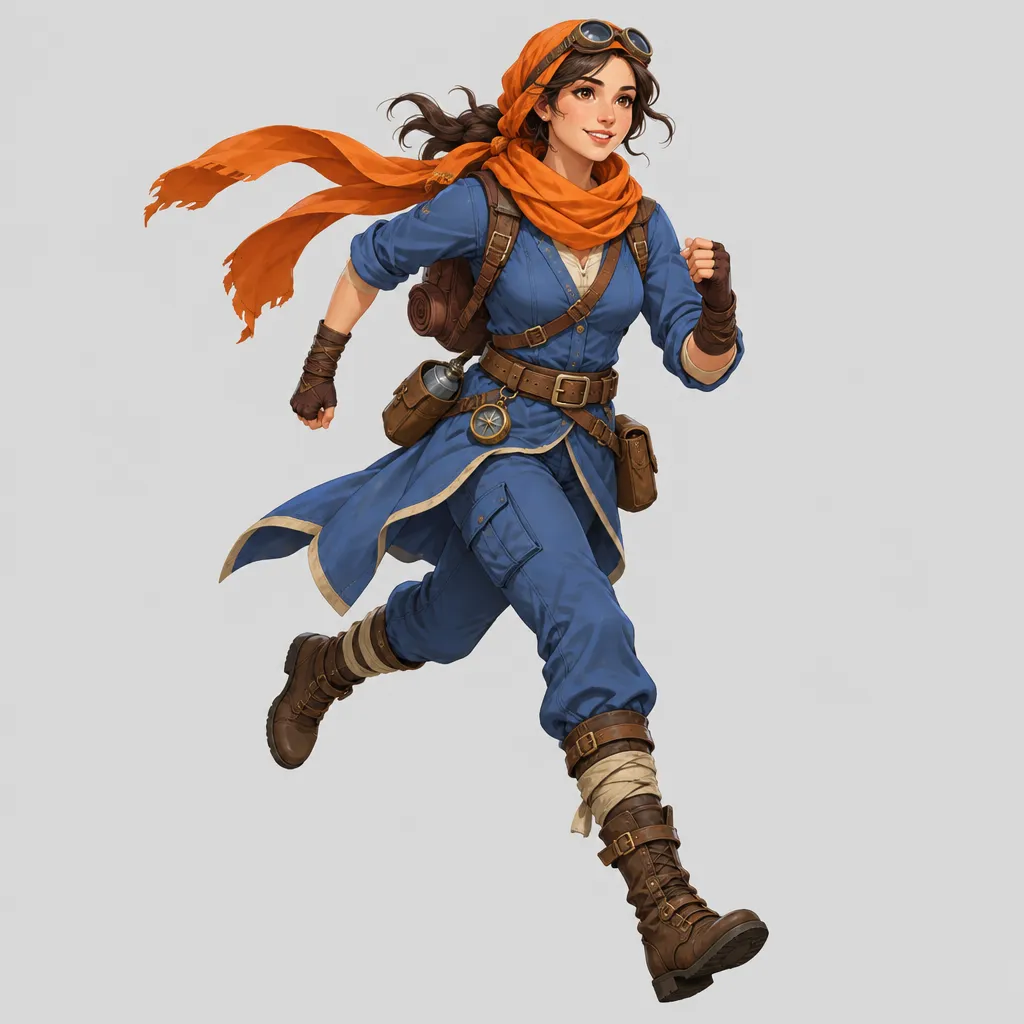
Use an existing character as the starting point for story illustrations, game concepts or a series of posts. Choose Sunburst when edit control matters most. Provide a clear reference for the face, hair, clothing and accessories, then separate requested changes from details to preserve.
Lock the identity before the edit
List the face, silhouette, costume, colors, scale, camera angle, and other elements that must survive the requested change.
Example prompt: character edit
“Use image 1 as the character reference. Keep the hairstyle, face shape, green jacket and shoulder patch. Change the standing pose to running left, retain an eye-level camera and replace the background with a street at dawn. Add no weapons or clothing color changes.”
Narrow the edit with a mask
For a background replacement or accessory change, prepare a PNG mask matching the first reference, with transparency over the area to edit. Compare the result with the original, especially the face, clothing patterns and transitions along the boundary.
Plan a sequence of poses on one canvas
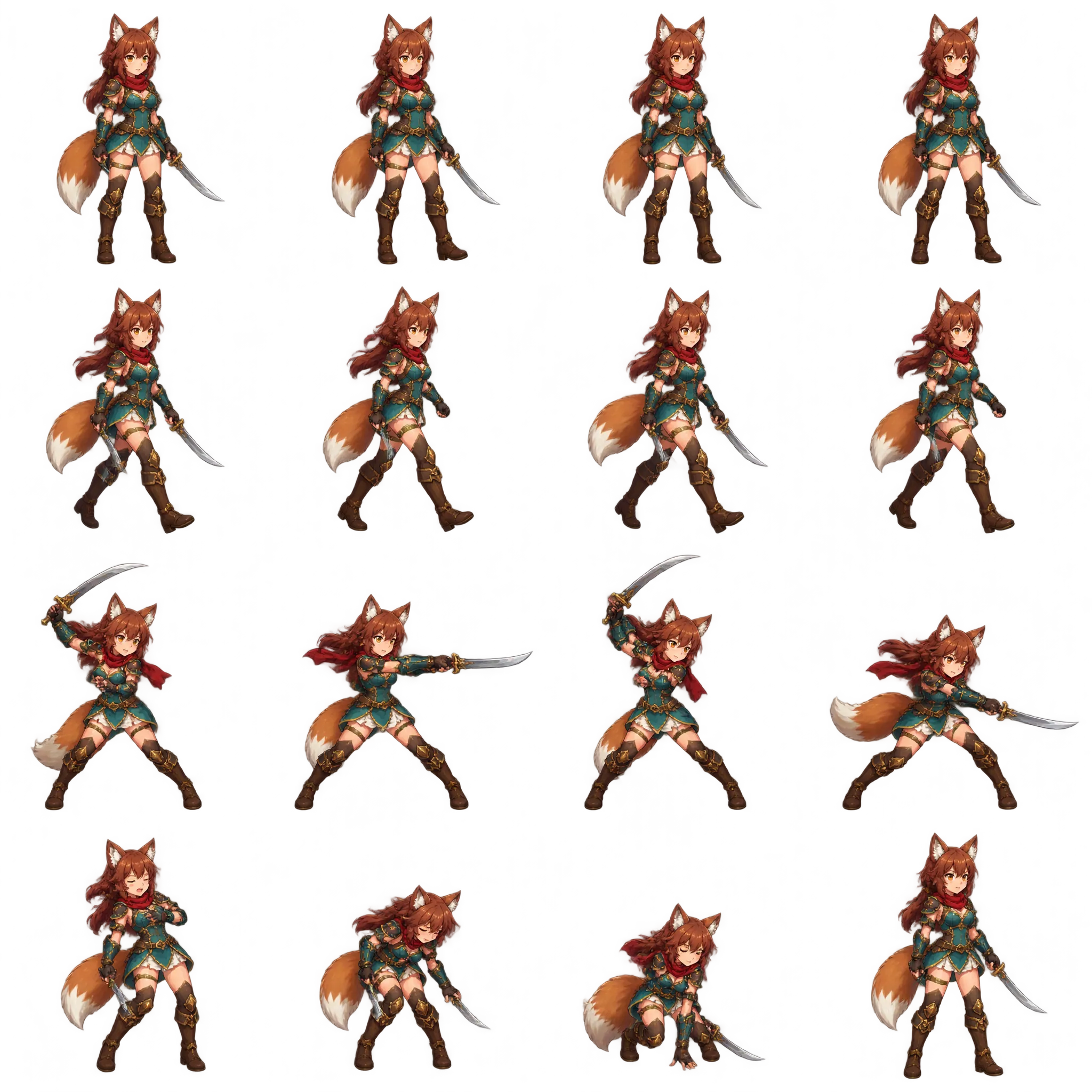
Create a character sheet for storyboard discussions, movement studies or sprite drafts. Specify the grid, action order, camera and subject scale to make the single PNG easier to review. Animation work still requires separating, aligning and cleaning up frames in another editor.
Check continuity across every cell
Review the face, hands, accessories, weapon, spacing, and action sequence before separating the sheet into individual frames.
Example prompt: pose sheet
“Using image 1, draw a 3×2 character sheet showing idle, starting, running, jumping, landing and standing. Keep the same viewpoint, character scale, clothing and lighting in all six cells. Leave even margins and add no text labels.”
Review the sheet for its destination
Compare face shapes, hands, prop orientation and foot baselines across the cells. For transparent assets, select a transparent background and inspect edges against both light and dark colors. A pose sheet remains one image, not an animation or a set of separate frame files.
Built for visual work that cannot afford accidental changes
GPT Image 2.5 adds useful control at each stage: define the deliverable, assign roles to references, limit the edit area, and select output settings before the request runs.
Flare for everyday concepts and visual exploration
Start with Flare when you want to explore composition, lighting and color. Change one clear instruction at a time, such as the background or camera position, so you can see which adjustment improves the next draft.
Sunburst for deliberate editing
Choose Sunburst when adapting an existing image requires careful attention to product outlines, character traits or layout. List those constraints explicitly. Variant selection sets the creative approach; quality controls the detail budget for that request.
Carry a subject into a new scene
Use a portrait or product reference to explore a different setting, composition, or visual treatment while asking the model to retain recognizable details.
Give every reference a job
Upload up to 16 JPEG, PNG, or WebP files and state which image supplies the subject, lighting, palette, pose, layout, or material cues.
Protect the untouched area
Add a same-size PNG mask to the first reference. Transparent mask pixels mark the region to revise; opaque pixels identify what should stay protected.
Produce assets with real alpha
Select transparent background for cutouts, stickers, interface pieces, or sprites, then inspect the downloaded PNG for halos and stray opaque pixels.
Frame output for its destination
Select from 15 aspect ratios, automatic sizing, or valid custom pixel dimensions. Ratio mode also offers 1K, 2K, and 4K resolution tiers.
Spend quality where viewers will notice
Move from Low through Maximum quality when dense text, small product details, or final-publish polish justify the added credits.
A visible credit estimate before you generate
The button estimate changes with quality, size, prompt, references and mask. Confirm a composition at a lower cost before raising settings for delivery. Auto sizing is quoted at the largest output band; a specific ratio makes budgeting easier.
From a brief to a downloadable PNG
Define the subject, destination and preservation requirements first, then add controls as needed. You can confirm a direction before spending credits on a higher-detail output.
Choose a version and a goal
Explore an ad, illustration or product scene with Flare, or choose Sunburst for careful edits to an existing image. Decide the destination and frame: a vertical social post, a web banner or a square product image.
Organize your prompt and references
Describe the subject, composition, lighting, style and visible text. Give uploaded images roles, such as “subject from image 1, colors from image 2.” Add a same-size PNG mask when only a region needs editing.
Set the output and review credits
Choose a quality level and ratio, automatic or custom sizing. Set the background and check the credit estimate before submitting. Defaults are Flare, medium quality, 1:1, 1K and an opaque background.
Review and refine the result
Download the PNG and inspect text, subject details and edges, including alpha for transparent output. To continue editing, upload the result as a new reference and describe the specific changes for the next request.
Questions before you generate with GPT Image 2.5
When should I choose Flare instead of Sunburst?
Flare is the faster default for everyday creation and high-volume iteration. Sunburst is aimed at detailed creative work where tighter editing control matters more than turnaround time.
What can I use as a reference?
Image-to-image mode accepts up to 16 JPEG, PNG, or WebP references. Number them in the prompt and explain the role of each file instead of expecting the model to infer your intent.
What does the mask control?
The optional mask must be a PNG with the same dimensions as the first reference. Transparent mask pixels indicate where edits are allowed; opaque pixels indicate the area to preserve.
How do I request a transparent image?
Choose Transparent in the Background control. Also describe the intended cutout and edge treatment in the prompt, then verify the downloaded PNG alpha channel before production use.
Which size and quality options are available here?
You can use automatic sizing, one of 15 ratios, or valid custom dimensions. Ratio mode supports 1K, 2K, and 4K tiers, and quality ranges from Low to Maximum. The button shows the current credit estimate.
Does a reference guarantee exact identity, text, or product details?
No. References and preservation instructions improve control but do not guarantee an exact match. Review faces, hands, spelling, logos, geometry, claims, and rights before publishing.
How are GPT Image 2.5 credits calculated?
The site converts estimated generation cost into credits at one credit per $0.005, rounded up, with a minimum of two credits. Quality, dimensions, prompt length, references and a mask contribute to the quote. Credits are reserved on submission, consumed on success and returned when a task is marked failed. Check the button estimate before each request.
Which settings should I try first?
Start with the default Flare, medium quality, 1:1 and 1K. Confirm the composition and subject before raising quality or resolution for dense text, materials or your intended use. Higher settings change the estimate and do not guarantee a better fit for your taste; clear instructions and suitable references matter too.
What are the custom-size limits, and does 4K mean 4096 pixels?
Both dimensions must be multiples of 16, from 16 to 3840 pixels per side, with 655,360–8,294,400 pixels in total and a longest-to-shortest-side ratio of at most 3:1. The 4K setting is a pixel band, such as 3840×2160 at 16:9 or 2880×2880 for a square, not a fixed 4096-pixel width. Larger sizes are experimental.
How should I request a headline or label?
Put the exact wording in quotation marks and specify placement, hierarchy, spacing and type style. For example: “Headline at the top: ‘Summer Starts Here’; small caption at bottom right: ‘Travel Light’; no other text.” Proofread the output. For exact typography, you can leave space and add final text in a design editor.
Can I generate a batch or an animation?
This site currently returns one PNG per request, with no batch-count selector or animation output. You can ask for several poses or concepts arranged within that image, but they share one canvas. Cropping, frame separation and animation assembly happen in another tool.
How long can prompts be, and how large can uploads be?
Prompts have both a 32,000-character limit and a 60,000-byte UTF-8 limit, so some languages and emoji reach the byte limit sooner. Upload up to 16 JPEG, PNG or WebP references, no larger than 10 MB each. The separate PNG mask also has a 10 MB limit.
Will everything outside the mask stay exactly unchanged?
A mask communicates the edit boundary; it does not guarantee pixel-identical preservation elsewhere. Repeat preservation requirements in the prompt and remove unrelated references. Compare the result with the original. If exact source pixels are essential, composite the accepted edit back onto the original in an image editor.
Turn the next visual brief into a reviewable file
Start with a clear visual brief: select a version, describe the subject and what must stay, then refine the request with references, a mask and output settings. Create one PNG to review and use the next request to focus on the changes that matter.