
Describe what you want to generate
Select or drop multiple images, up to 10. JPG, PNG or WebP; 10 MB each.

Seedream 5.5 AI Image Generator & Editor
Generate images, edit with up to 10 references, and export transparent PNGs with Seedream 5.5. Choose 1K, 1.5K or 2K and see the credit cost before submitting.
Official Seedream 5.5 examples from X
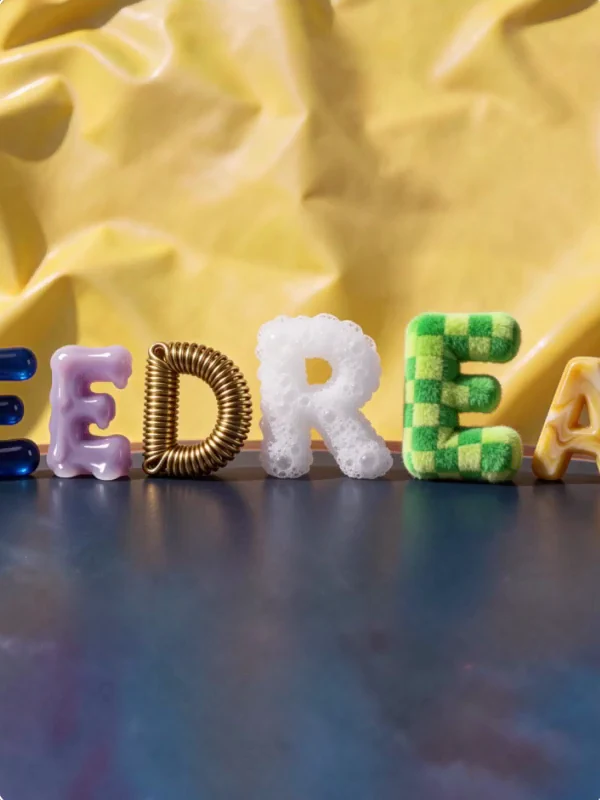
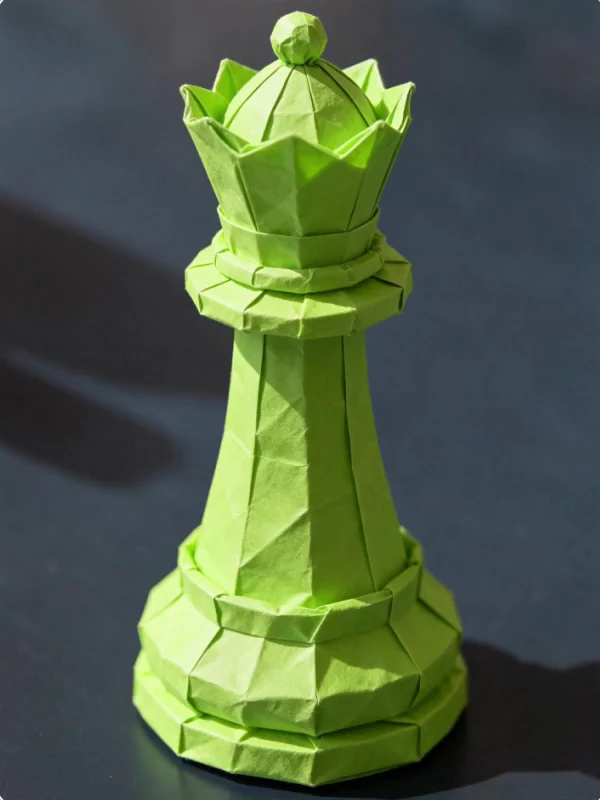
Four cropped stills from ByteDance Seed’s official X editing demo. They belong to the same edit sequence and were not generated on Flux2pro. These flattened images do not verify alpha transparency or export formats.

Change one detail and keep the rest of the image
Use one clear edit brief to make revisions easier to compare with the source.
Upload the original
For the first pass, use the original alone. Add another image only if it supplies a missing detail such as a fabric swatch.
Describe one change
Try: “Change only the bag fabric from coral to olive. Keep the seams, buckles, proportions, camera angle and background.”
Check the areas you asked to keep
Compare the straps and shadows with the original before making another edit. Keep the original to catch changes that build up across revisions.
Seedream 5.5 settings on Flux2pro
Generate or edit
Write a prompt to start from text. Upload up to 10 JPEG, PNG or WebP references, up to 10 MB each, to guide an edit.
Choose the background
Choose Transparent for a cutout or Opaque for a solid scene. Output is PNG. Inspect semi-transparent edges over both light and dark colors.
Pick a size for the next step
Use 1K or 1.5K to review composition, then choose 2K if the final layout needs more detail. The cost depends on the output size and number of reference images.
How to create a Seedream 5.5 image
Write the brief
Describe the subject, placement and lighting. For an edit, say what changes and what stays.
Set the deliverable
Choose an aspect ratio, resolution and background. Quote short text exactly if the image should contain it.
Generate and inspect
Check the credit cost, then generate. Open the downloaded PNG to verify transparency, spelling and edges as appropriate.
Seedream 5.5 questions
Can I generate a transparent PNG?
Yes. Select Transparent in the background setting. Check the alpha channel in an image editor before using the image in a layout.
Is layer decomposition available here?
This generator creates or edits one PNG. Kie documents layer decomposition as a separate route, and it is not part of this page.
How many credits does an edit use?
The generator shows the price before submission. Seedream 5.5 starts at 4 Flux2pro credits for a 1K or 1.5K image without references. Reference images add to the cost.
Try a focused Seedream 5.5 edit
Start with one source and one change. Keep the original to review the result side by side.