
Describe what you want to generate
Select or drop multiple images, up to 16. JPG, PNG or WebP; 10 MB each.
GPT Image 2.6 — AI Image Generator & Editing
Create and edit images with GPT Image 2.6 Flare or Sunburst. Compare real examples, choose size and quality, and refine with up to 16 references.
Generated with this integration
AI-generated fictional examples created through Flux2pro. Settings and practical observations are shown below; results vary.
Explore a product direction with Flare
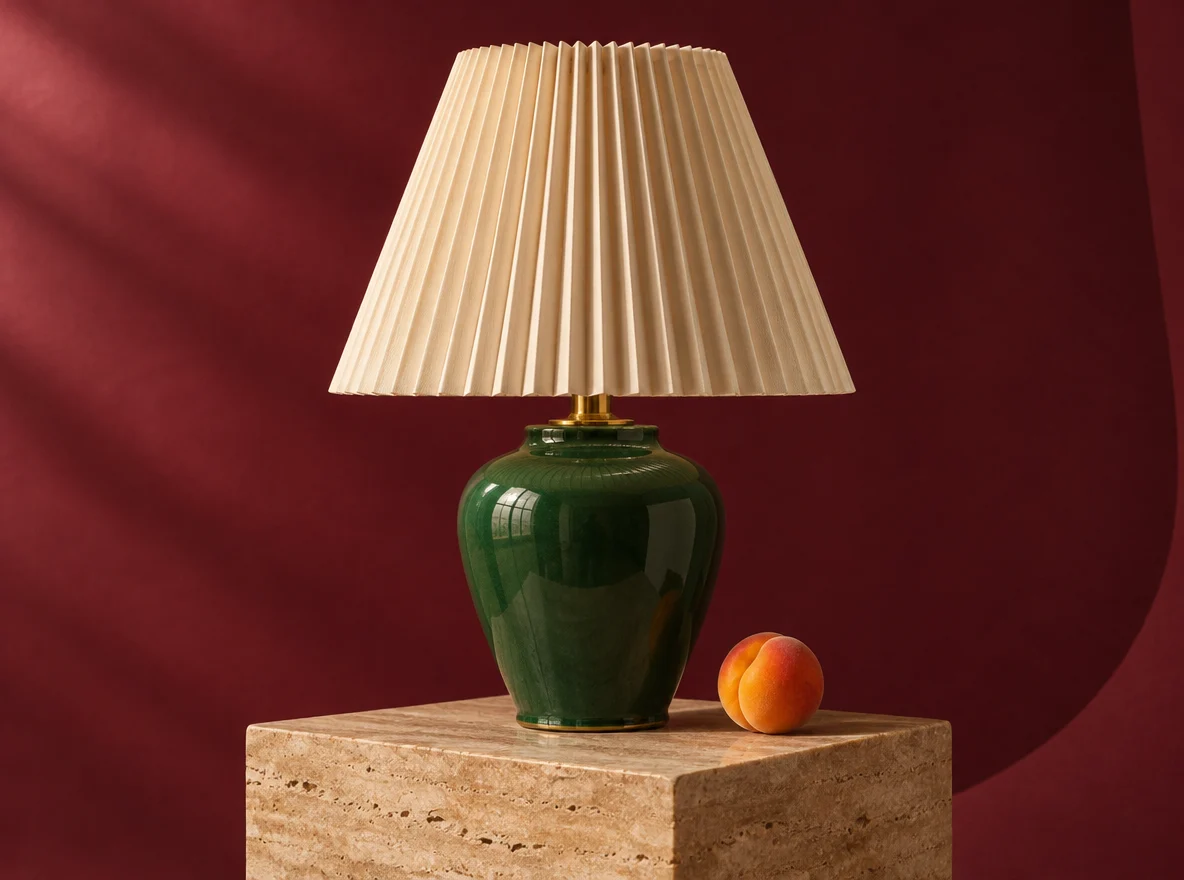
A fictional green ceramic lamp with a pleated cream shade on a stone pedestal.
Describe the object before its setting
For a product concept, specify shape, materials, viewpoint and light first. Add props and leave space for campaign copy. Use a reference when an existing product must guide the result.
Try this brief
“An unbranded forest-green ceramic lamp with a pleated cream shade on travertine, a burgundy backdrop and one apricot. Soft upper-left light, realistic glaze and fabric, no text.” Start with Flare, medium, 1K and 4:3.
Choose a variant for the job
OpenAI positions Flare for iteration and Sunburst for detail and edit precision. This sample illustrates one output, not a speed or quality benchmark. Inspect geometry, materials and unwanted additions.
Compose image and headline in the same brief
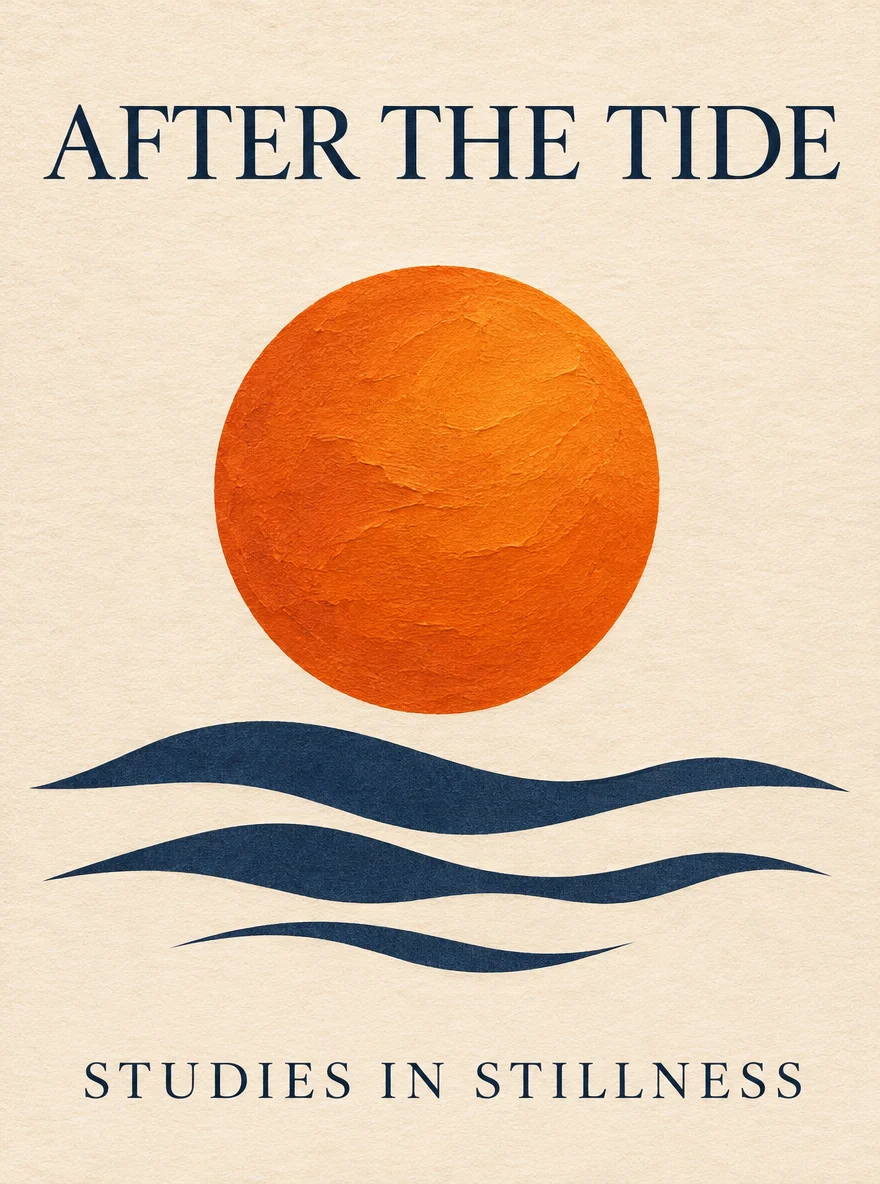
An AI-generated editorial poster used to inspect layout and lettering.
Give the model a reading order
Quote the finished headline, specify its location and describe margins and illustration separately. Short copy makes spelling and hierarchy easier to review.
Try this brief
“A cream editorial poster with a sculptural orange sun and navy sea shapes. Headline exactly ‘AFTER THE TIDE’, small subtitle ‘STUDIES IN STILLNESS’. Clear type, generous margins, no other text.” Choose 3:4.
Review before publishing
This sample rendered “AFTER THE TIDE” and “STUDIES IN STILLNESS” with the requested spelling. That does not establish accuracy for long copy or other languages. Review letterforms and line breaks; finish precise typography in a design editor.
Refine an existing image with Sunburst
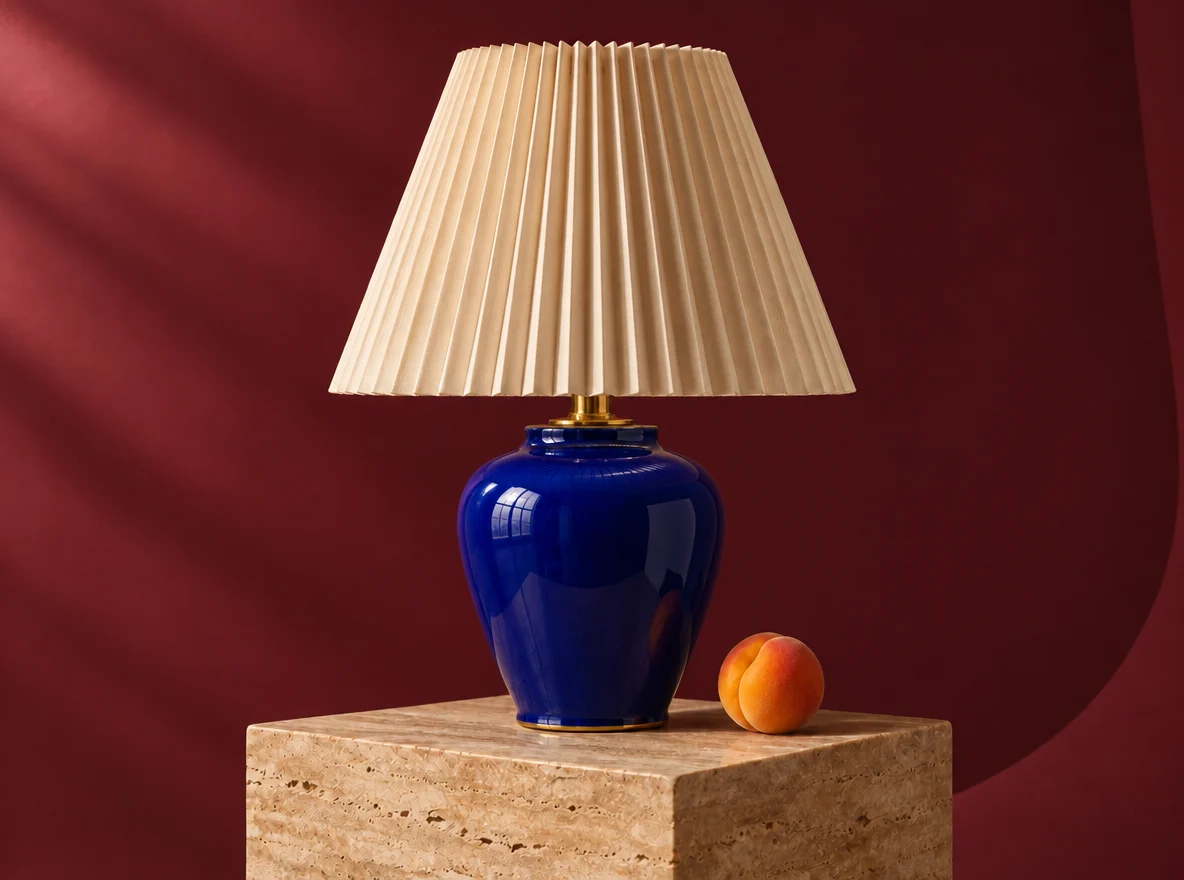
A reference edit of the lamp concept, requested with a different ceramic color.
State the change and the constraints
Upload the original, name the surface to recolor and explicitly retain the shade, props, camera and lighting. Multiple references guide one result; they do not create a batch.
Try this edit
“Change only the lamp’s ceramic base from forest green to cobalt blue. Keep the cream shade, stone pedestal, apricot, backdrop, camera and light as close to the reference as possible.” Choose Sunburst and add the original.
Compare the source and result
Check the silhouette, pleats, shadows and prop positions, as well as the requested color. For a mask edit, upload a transparent PNG matching the first reference’s dimensions; inspect boundaries afterward.
Controls available on this page
Model information checked on November 9, 2026. Credit totals follow the current form.
Flare and Sunburst
Select a version in the form. Both accept text prompts and reference images; choose based on your iteration and detail needs.
Five quality levels
Low, medium, high, very high and maximum affect the quote. A higher setting does not guarantee a better composition.
Up to 16 references
JPEG, PNG or WebP, up to 10 MB each. An optional transparent PNG mask targets the first reference.
Ratio, auto or custom size
Choose 1K, 2K or 4K presets, auto size or custom dimensions within the form’s supported limits.
Long creative briefs
Up to 32,000 characters, also subject to the 60 KB UTF-8 limit. Organize subject, text, layout and edit constraints clearly.
One PNG per generation
Choose opaque or transparent background. This form outputs a still image; GIF, SVG and markup layers are not exposed.
How to generate and refine an image
Write a specific brief
Describe the subject, composition, materials and light. Put exact text in quotes and provide verified factual copy yourself.
Choose version and settings
Start with a modest draft size. Select Flare or Sunburst, quality and aspect ratio; add references and a matching mask only when needed.
Review the credit quote
Sign in and check the current button total. Size, quality, prompt length, references and a mask can change the cost.
Inspect and refine
Generate one image, review it at full size and download the result. Reuse it as a reference for a clearly scoped follow-up edit.
Questions before you generate
What is GPT Image 2.6 on Flux2pro?
It is this site’s text-to-image and reference-editing integration of GPT Image 2.6 Flare and Sunburst, served through EvoLink. Flux2pro is an independent service, not the official OpenAI interface.
How should I choose Flare or Sunburst?
OpenAI describes Flare as suited to faster iteration and Sunburst as suited to greater detail and editing precision. Compare outputs for your own brief; this page does not promise a fixed generation time.
How many references can I upload?
Up to 16 JPEG, PNG or WebP images, no more than 10 MB each. Explain each image’s role. References guide one output and do not enable batch generation.
How does mask editing work?
Add a first reference and a PNG mask with transparency, using the same pixel dimensions. Transparent regions identify the area to edit. Describe what must remain and review the result’s edges.
What are the custom-size limits?
Each edge must be a multiple of 16 and no larger than 3,840 pixels. Total area must be 0.65–8.29 megapixels, with the longer side at most three times the shorter. The form validates custom values.
How much does generation cost?
The button displays the calculated site-credit cost before submission, based on output settings, prompt and reference inputs. This site settles that credit amount; it is separate from OpenAI’s or EvoLink’s direct API token pricing.
Can I make GIFs or SVGs here?
This page currently returns one PNG. OpenAI’s wider API capabilities, including GIF, SVG and markup tools, do not mean those features are available in this form.
Is it free, and can I use the image commercially?
Sign-in and sufficient site credits are required. Check applicable service and model terms and the rights to your inputs. Review text, likenesses, logos and product details before publication.
Create your next visual
Sign in, write a clear brief and check the credit quote before generating.