
Describe what you want to generate
Select or drop multiple images, up to 16. JPG, PNG or WebP; 10 MB each.

MiniMax H3 Image & Highspeed Generator
Create 1K, 2K or 4K images with MiniMax H3 Image or Highspeed. Edit with up to 16 references and assign a clear role to each image.
Examples from the MiniMax H3-Image release
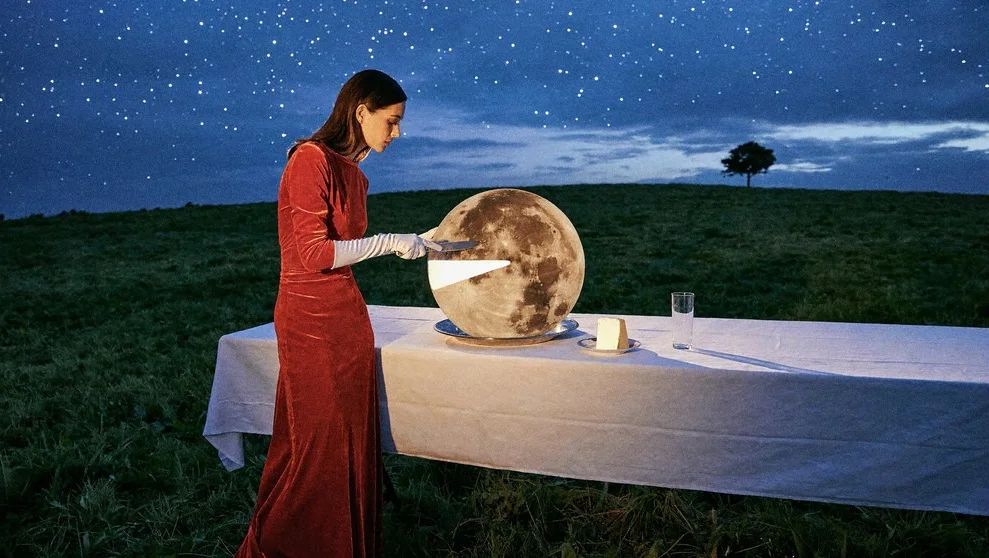
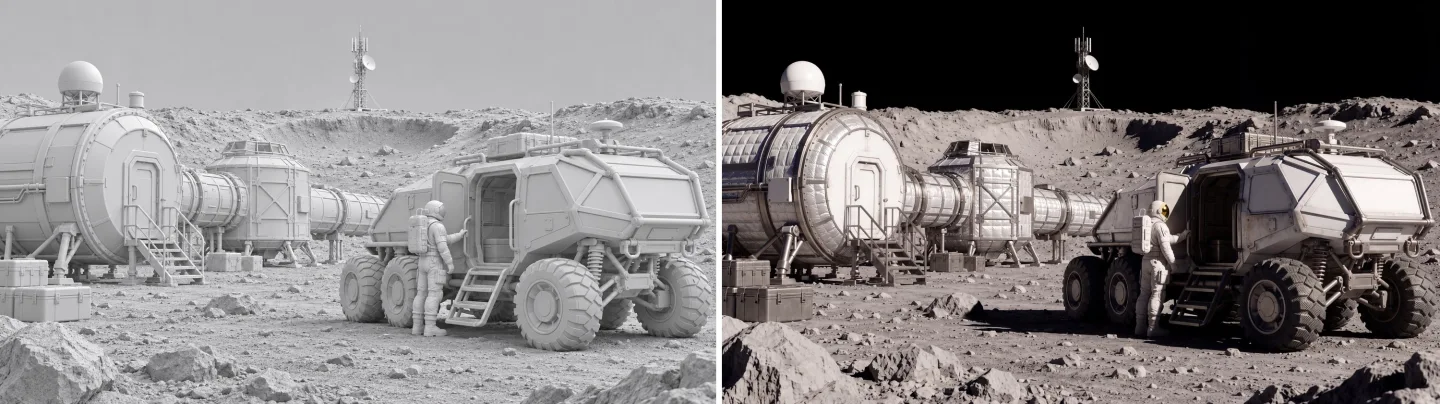
MiniMax published these selected images and before-and-after pairs. They illustrate the model family; they are not a Flux2pro test or a Standard versus Highspeed comparison.

Combine references into one product scene
A product photo can specify shape while a separate image supplies the setting.
Assign one role per reference
Use image 1 for product shape and image 2 for background or lighting. Avoid references that ask for incompatible framing.
Try this reference brief
“Use image 1 for the mug and image 2 for the window light. Put the mug on a slate counter at a three-quarter angle; retain the handle shape and glaze.”
Review before increasing resolution
Check silhouette, texture and shadows at 1K. Select 4K once the composition works; changing size does not guarantee that details stay identical.
Choose your MiniMax H3 Image settings
Standard or Highspeed
Both variants offer the same controls here. Start with Standard if cost matters and use Highspeed when waiting time matters. Actual generation time varies.
Three output tiers
Choose 1K, 2K or 4K and an aspect ratio that fits the placement. These are resolution tiers; exact pixel dimensions depend on framing.
One PNG per job
Add up to 16 JPEG, PNG or WebP references. Prompt expansion is enabled. Mask editing and transparent backgrounds are not offered by this model on Flux2pro.
How to generate or edit an H3 image
Pick the model version
Select Standard or Highspeed in the model menu.
Set the frame and references
Choose ratio and size. If you upload multiple images, name their roles in upload order.
Compare the output with the brief
Review geometry, typography and any reused design details. The button shows the credit cost before submission.
MiniMax H3 Image questions
Is this the MiniMax H3 video model?
No. This page generates and edits still images. The H3 video model uses a different endpoint.
Does Highspeed use different controls?
The same resolution, aspect ratio and reference controls are available. Highspeed uses a different rate, shown in the generator.
Can I output a transparent cutout?
This page returns PNGs, but H3 Image does not offer transparent backgrounds here. Use Seedream 5.5 for a PNG with transparency.
Try MiniMax H3 Image with a short brief
Use Standard and 1K to compare ideas before increasing the resolution.