
Describe what you want to generate
Select or drop multiple images, up to 14. JPG, PNG or WebP; 10 MB each.
Seedream 5.0 Image Generator — Create and Edit with Lite & Pro
Create cinematic scenes, illustrated characters and photographic portraits with ByteDance’s Seedream 5.0. Start from text or guide an edit with reference images. Explore Lite’s instruction following and Pro’s focus on visual detail, then choose the ratio and resolution for your next image.
Visual inspiration for your next brief
Explore different subjects, lighting and styles, then describe your own direction in the generator.
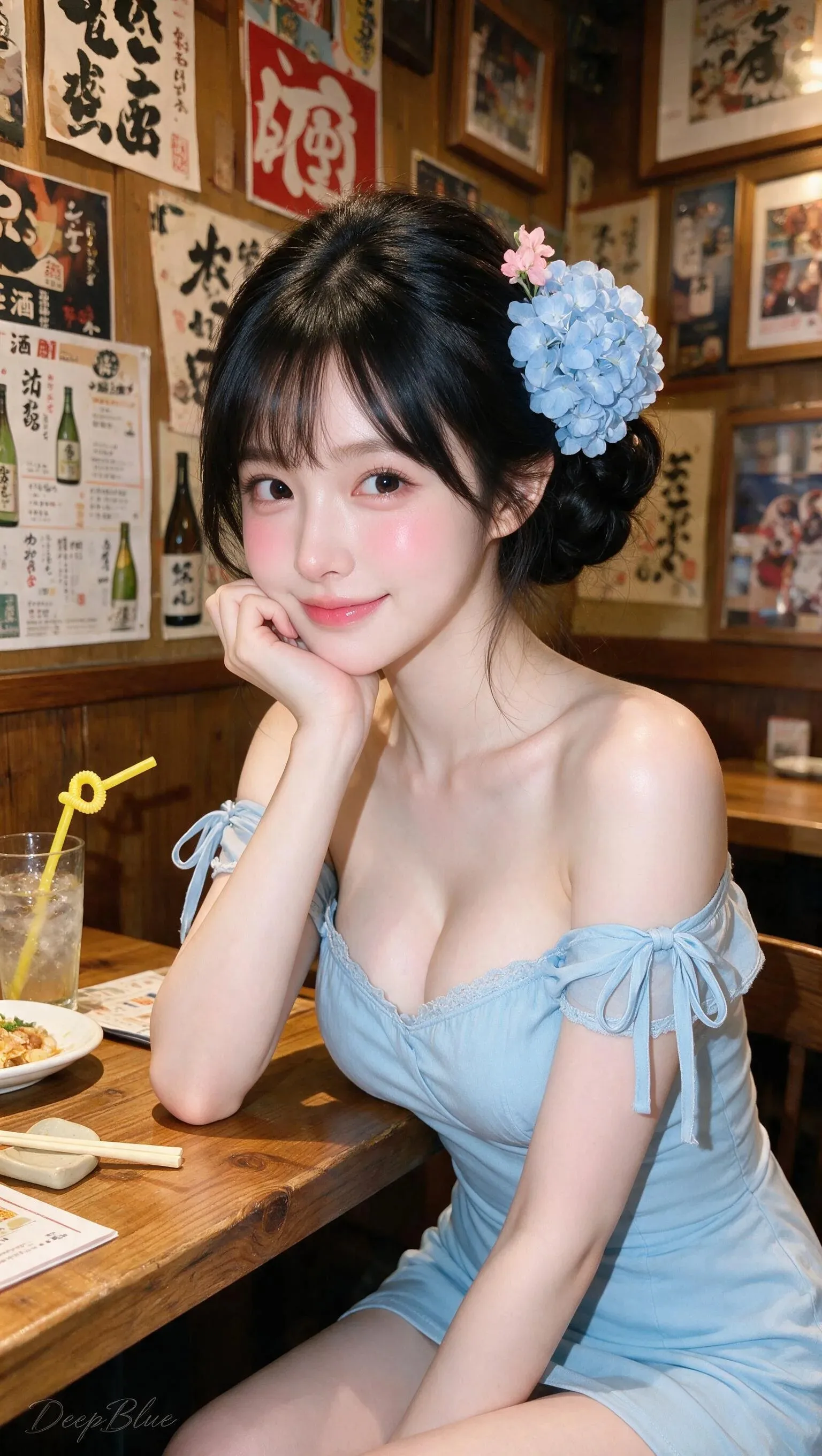
From a detailed brief to a coherent visual
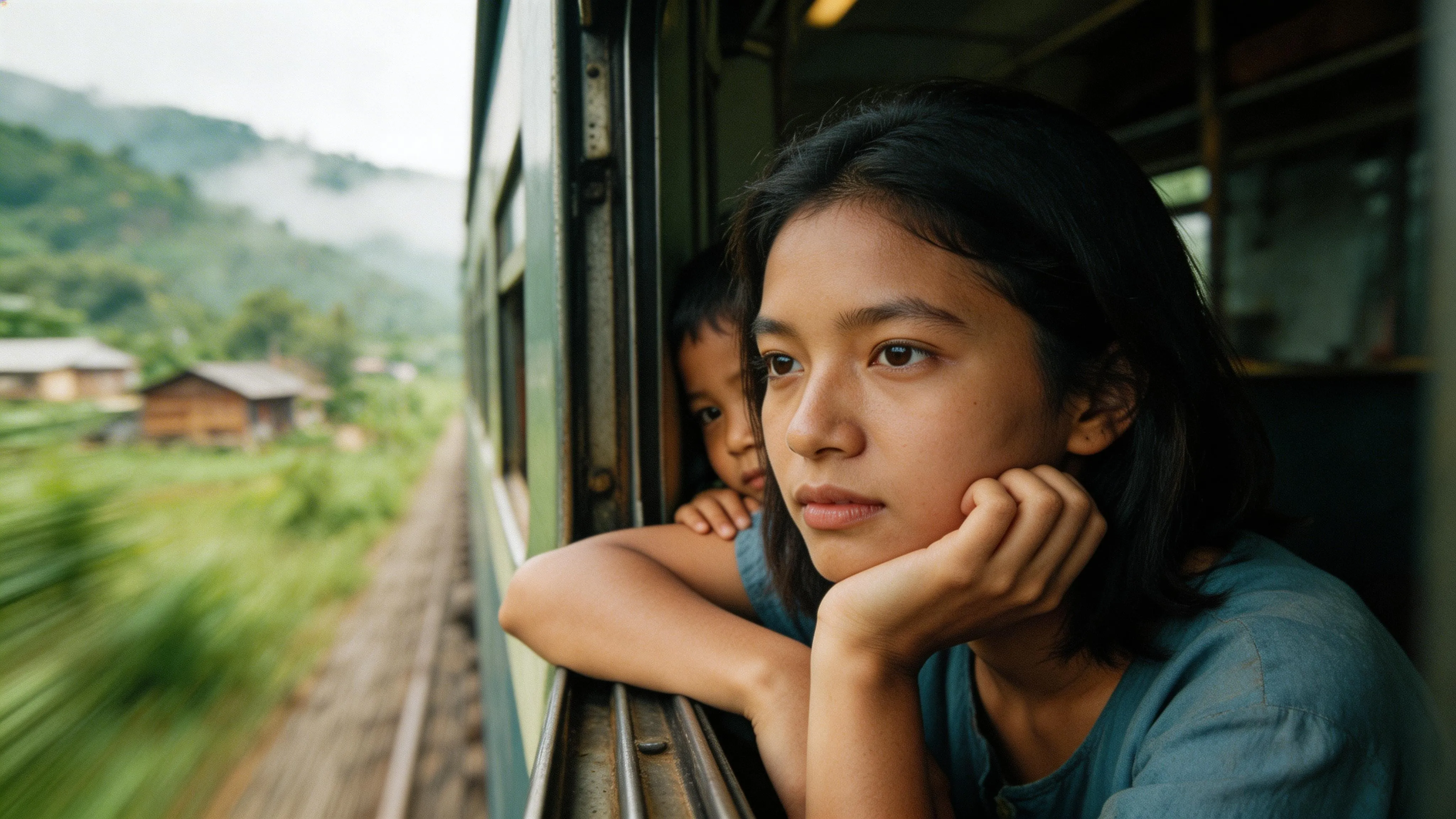
Use text to define the task and references to show the details words cannot capture.
Give complex scenes a clear visual hierarchy
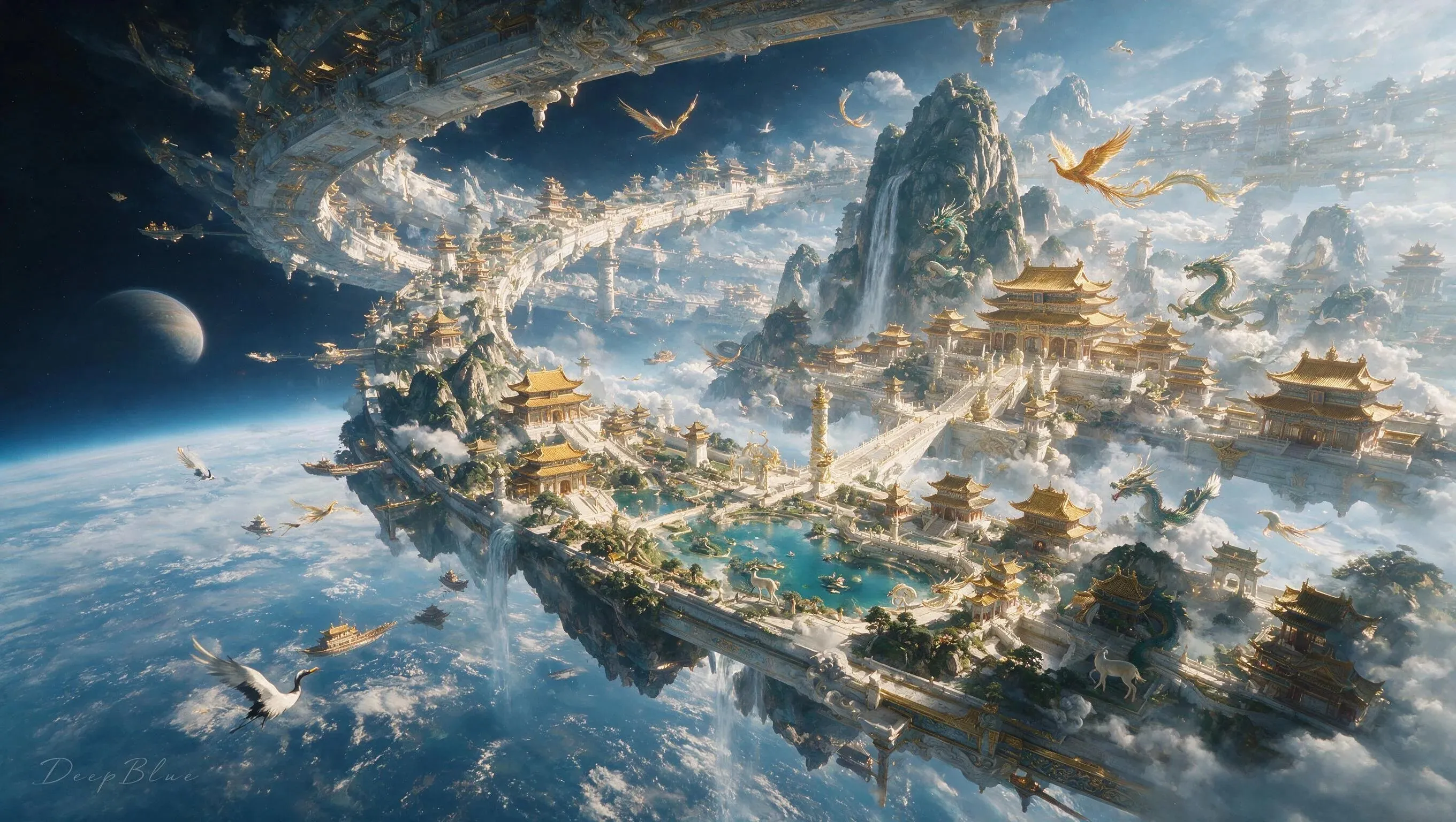
Lite’s official introduction emphasizes visual reasoning and following detailed instructions. Turn that into a practical brief: identify the focal subject, place supporting elements and explain how light ties the scene together. For a crowded environment, describe foreground, middle distance and background separately.
Set the scene before the style
Name the setting, camera position, weather and main action. Add a few concrete material or color cues instead of stacking vague quality words.
Prompt idea: a city in the rain
“A 16:9 industrial city in heavy rain. One cargo airship crosses between tall buildings; pedestrians fill the foreground. Soft blue engine lights, wet metal, deep perspective, no readable signs.”
Revise one relationship at a time
If the first composition is crowded, move the subject, reduce background objects or simplify the palette before increasing resolution.
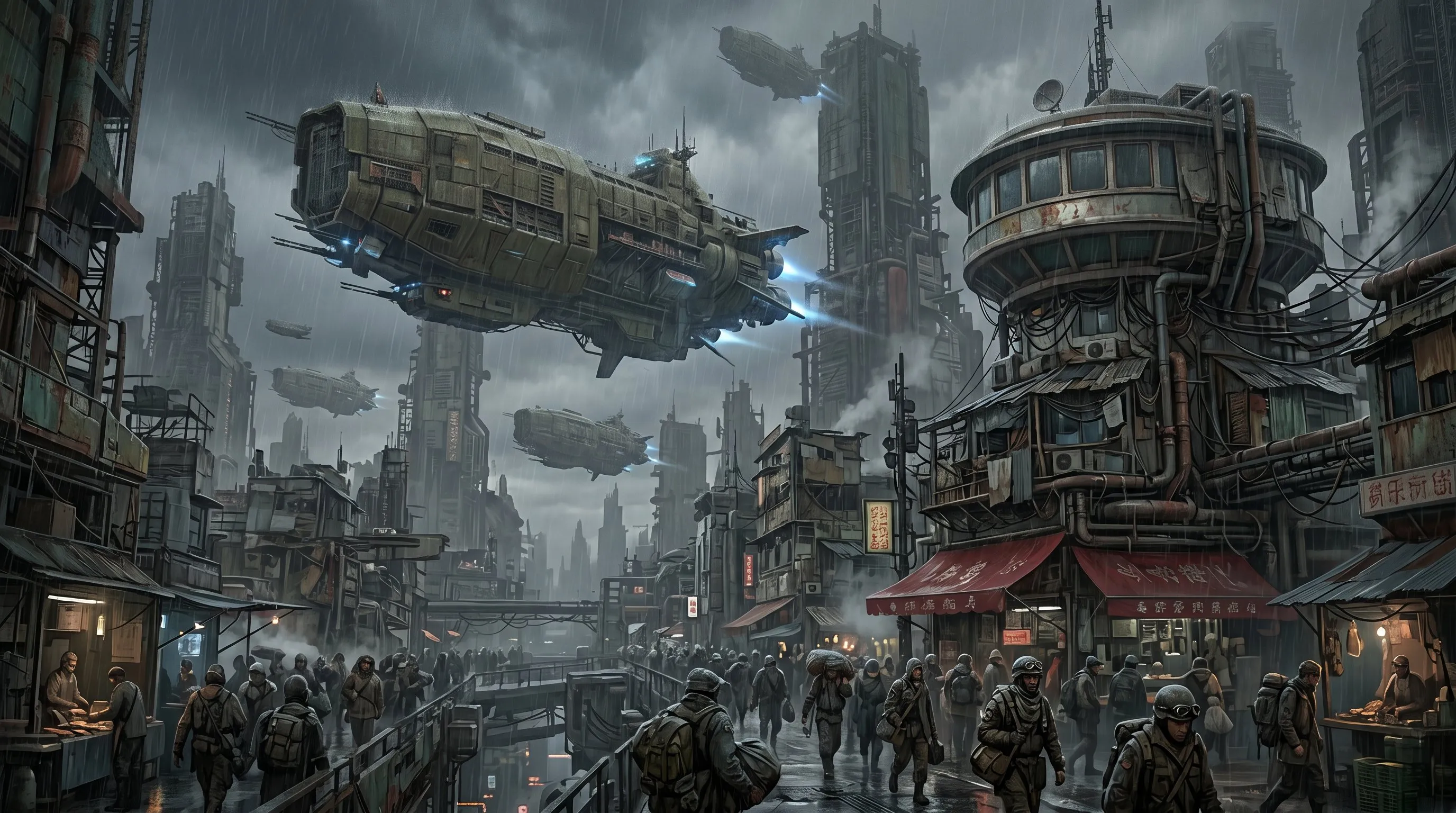
Direct light, texture and atmosphere with Pro
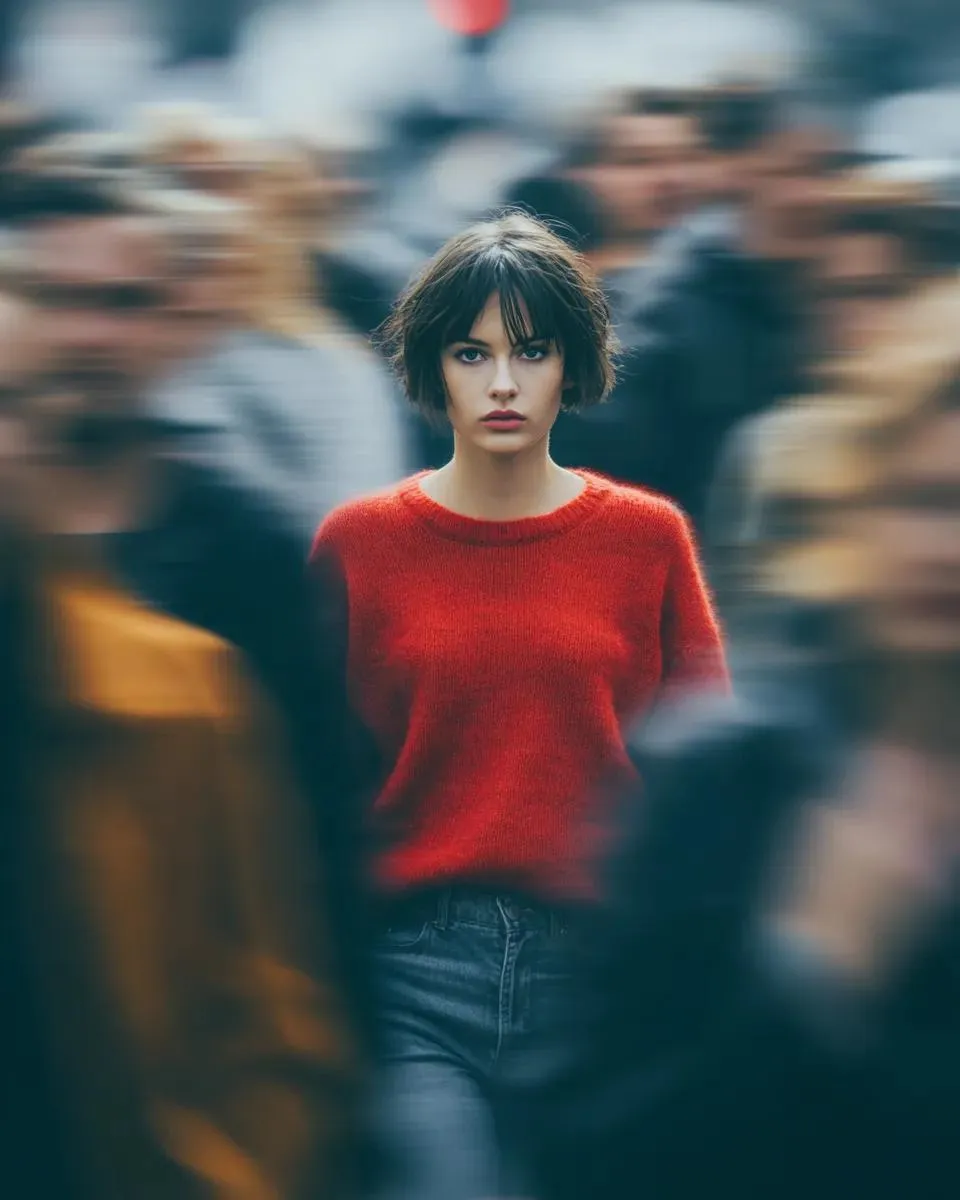
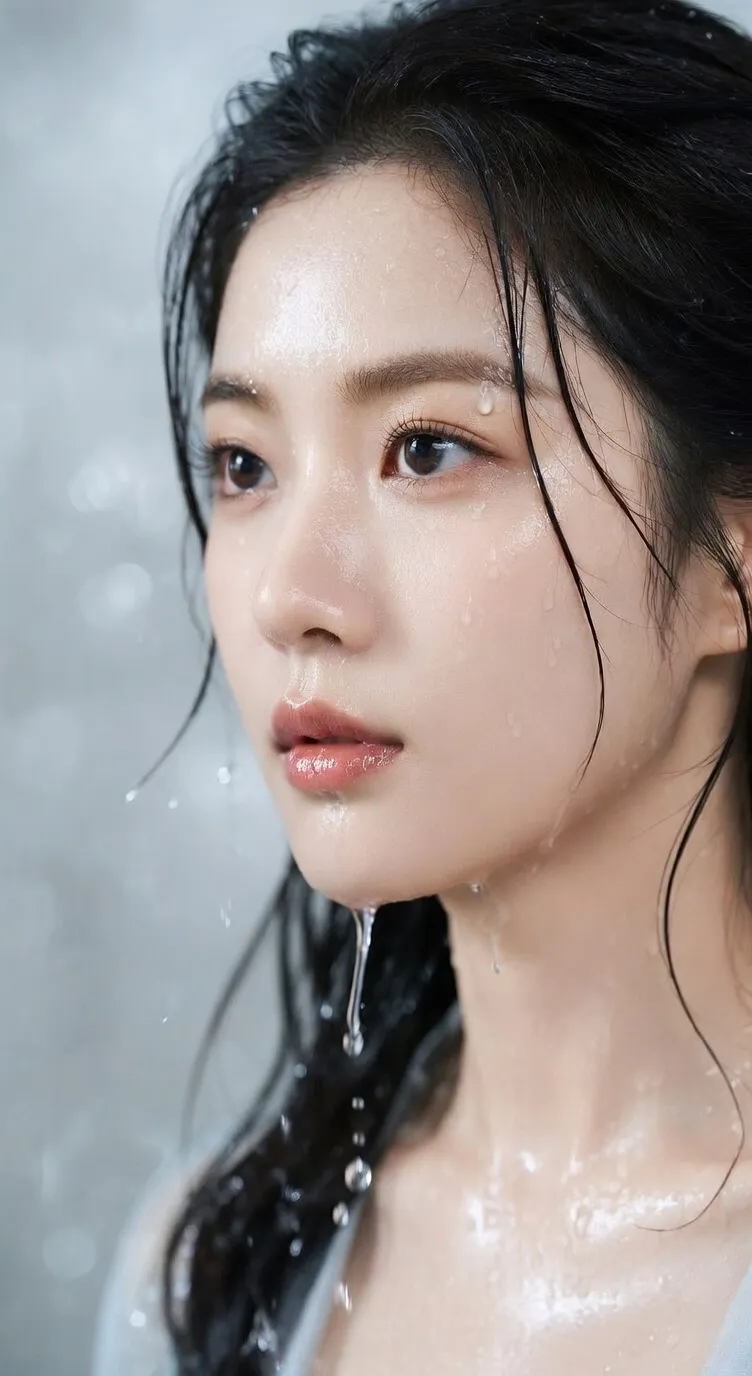
ByteDance highlights Pro’s photographic visual quality, including light, shadows and skin texture. Use it to explore portrait or campaign concepts with deliberate lighting. The portrait here is a visual reference for the contrast between a still subject and a moving environment.
Describe the photographic treatment
Specify soft or hard light, viewpoint, depth of field and the texture you want to retain. Explain where motion should appear.
Prompt idea: a subject in a moving crowd
“An eye-level portrait of an adult wearing a red sweater in a busy street. Keep the face sharp while passing pedestrians show motion blur. Overcast daylight, natural skin texture, muted city colors.”
Review at the intended display size
Check the eyes, hands, hair edges and fabric. Compare the result at full size before using it in a campaign or presentation.
Carry a character or style into the next image
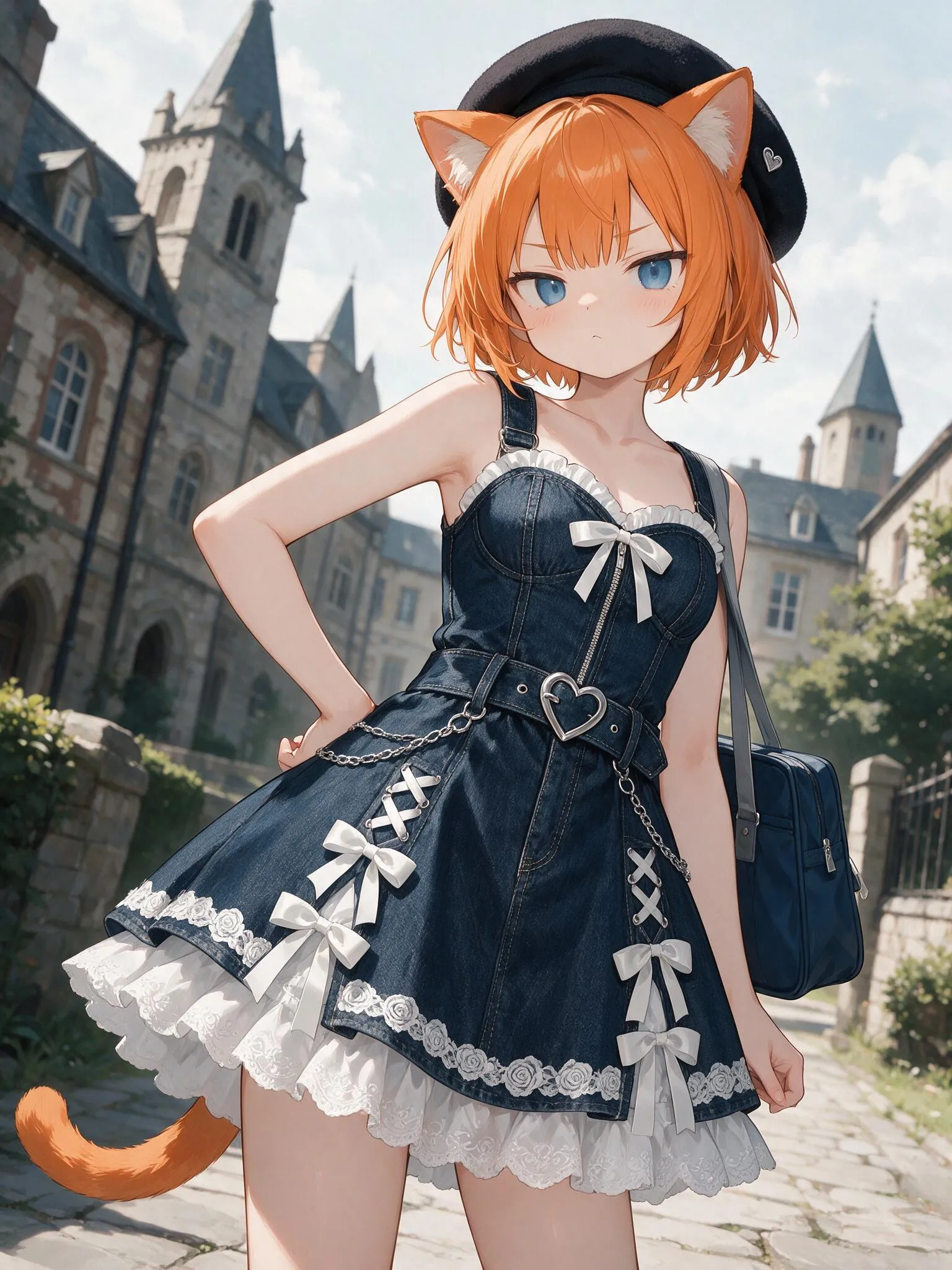
Both versions accept reference images for prompt-led editing. Give each reference a role, such as character, palette or environment. Describe the requested change separately from the identity and design features you want to retain.
Assign references by number
For example: subject from image 1, colors from image 2, composition from image 3. Fewer relevant references are easier to direct than an unrelated collection.
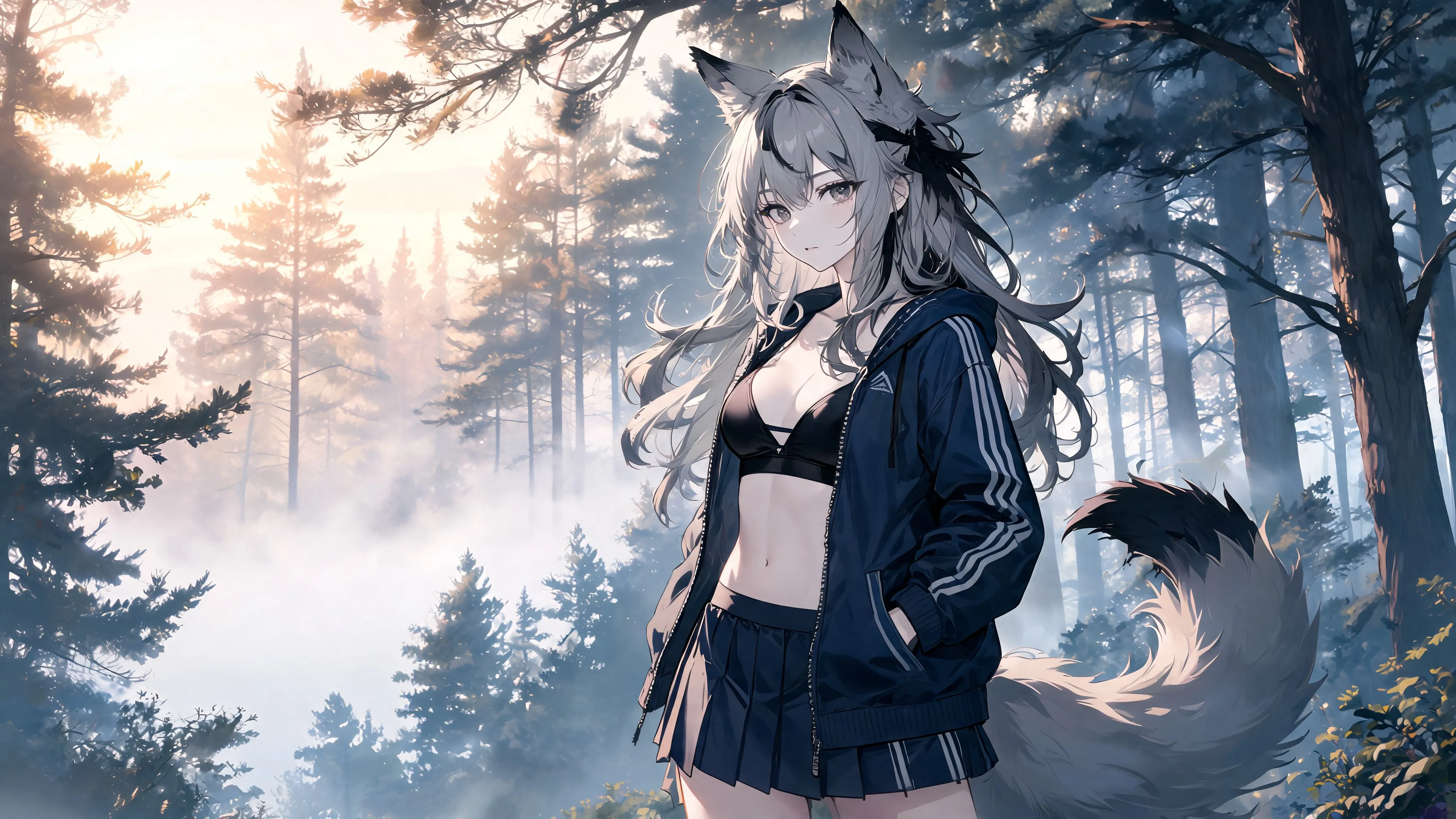
Prompt idea: a new setting
“Use image 1 as the character reference. Retain the silver hair, ears, dark jacket and illustration style. Place the character on a misty forest path with warm backlight and a 16:9 composition.”
Keep edits focused
Change the background, pose or material in a separate request. Compare each output with the source; reference guidance does not guarantee unchanged pixels.
Controls for the way you create
Choose a model, set the frame and refine your idea one image at a time.
Reasoning-led composition
Lite focuses on understanding instructions and relationships within a scene. Describe subject positions, actions and constraints explicitly.
Text and information layouts
Pro’s official examples include dense infographics and multilingual text. Supply exact wording and a reading order, then proofread the result.
Reference-guided editing
Combine a prompt with up to 14 reference images in Lite or 10 in Pro to guide subjects, materials and style.
Portraits and visual detail
Explore photographic or illustrated treatments. Use concrete instructions for lighting, texture and atmosphere.
Eight aspect ratios
Choose 1:1, 4:3, 3:4, 16:9, 9:16, 2:3, 3:2 or 21:9 for your intended placement.
Resolution and visible credits
Lite offers 2K, 3K and 4K; Pro offers 1K and 2K. Review the displayed credit total before generating one PNG.
Four steps from idea to image
Define the composition first, then refine the details.
Choose a version and a purpose
Start with Lite for scene exploration or try Pro for detailed visual work. Name the intended asset: portrait, poster, product scene or illustration.
Write the brief and add references
Describe the subject, layout, lighting, style and exact text. Add optional references and explain what each image contributes.
Set the output and check credits
Choose a ratio and resolution. Lite starts at 2K and Pro at 1K; reference images affect the Pro quote.
Generate, inspect and refine
Download the result, check the important details and reuse it as a reference for the next focused edit.
Seedream 5.0 questions, answered
Model differences, editing workflows and the settings available on this page.
What is the difference between Seedream 5.0 Lite and Pro?
Both are ByteDance multimodal image models. Lite emphasizes instruction understanding and visual reasoning; Pro’s official release highlights dense information layouts, editing control, photographic quality and multilingual content. Try the same brief in both when choosing a workflow; the higher resolution tier alone does not determine which result you will prefer.
How should I write prompts for images with text?
Put the exact copy in quotation marks. Describe its placement, hierarchy and surrounding space. For an infographic, supply the facts, labels and reading order yourself. Check spelling, numbers and translations before publishing.
Which files can I use as references?
Upload JPEG, PNG or WebP images up to 10 MB each. This page accepts up to 14 references for Lite and 10 for Pro. Use clear images and explain which details to preserve.
Does Pro offer 4K on this page?
No. The current Pro integration offers 1K and 2K. Lite offers 2K, 3K and 4K. The resolution menus show the options available for the selected version.
Are web search, masks and layer separation available?
The official model presentations demonstrate capabilities beyond this interface. This page offers text prompts and reference-image editing, with one PNG per request. It does not currently expose web search, masks, a lasso tool or layer separation.
How long can my prompt be?
Use 3–2,000 characters on this page. Start with the subject and composition, then add lighting, style, required text and preservation instructions. A clear structured brief is usually easier to refine than a long list of adjectives.
How many credits does a request use?
Lite costs 7 credits at any offered resolution. Pro costs 7 credits at 1K or 14 at 2K, plus 1 credit for every two reference images, rounded up. The button shows the total before you generate.
Can I generate without uploading an image?
Yes. Both versions support text-only generation. Add reference images when you want to guide an edit, subject or composition.
Will the output match every detail exactly?
Results can vary. Check spelling, faces and product details before publishing. Clear instructions and suitable references help communicate what should stay consistent.
Turn your next brief into an image
Choose Lite or Pro, describe the scene and add references when the details matter.