
Kling Image 4.0
Describe what you want to generate
Select or drop multiple images, up to 10. JPG or PNG; 10 MB each.
Kling Image 4.0
Create a detailed still image from text or guide an edit with up to 10 JPG or PNG references. Choose 2K, 4K or 8K output and preview the credit cost before generating.
Kling Image 4.0 example outputs
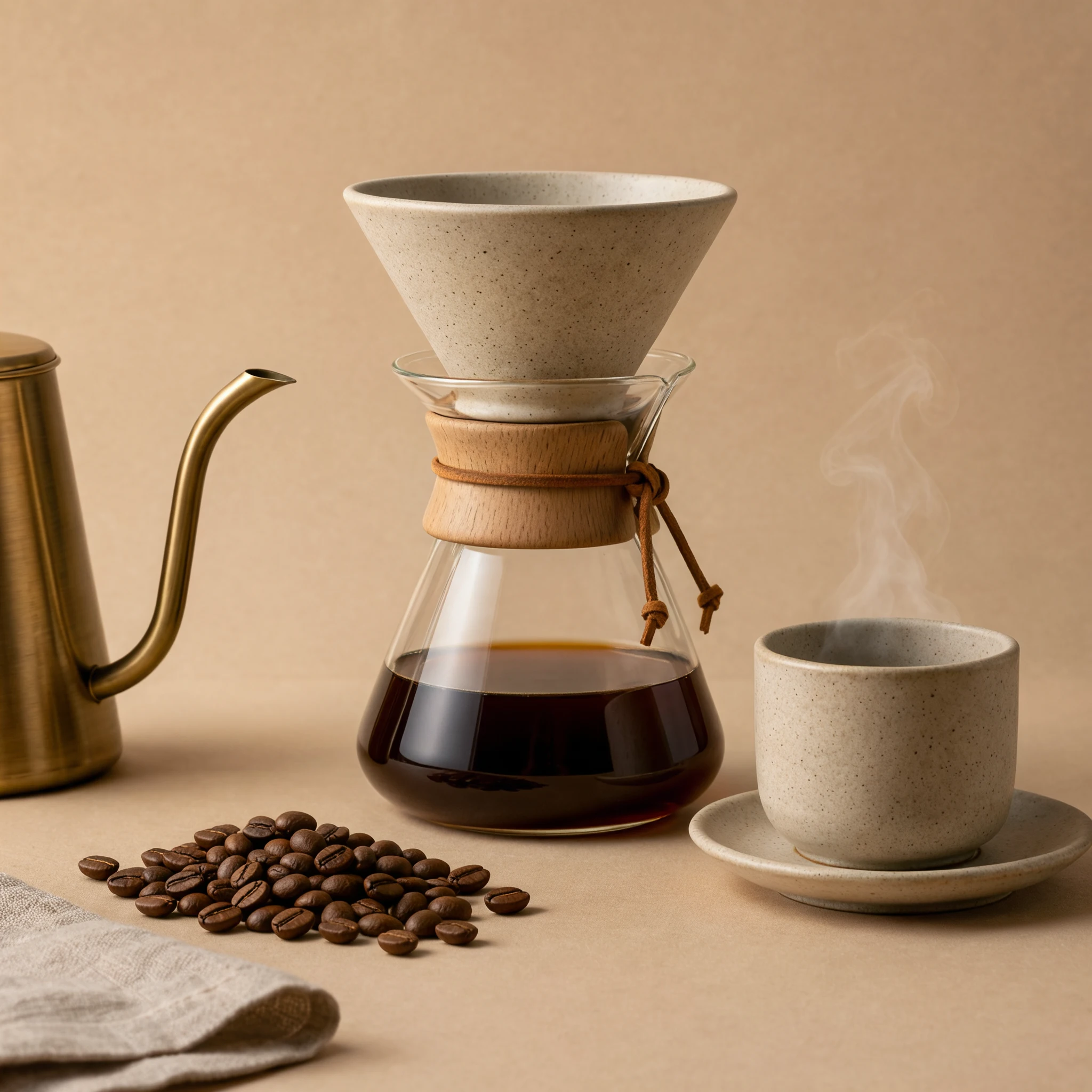
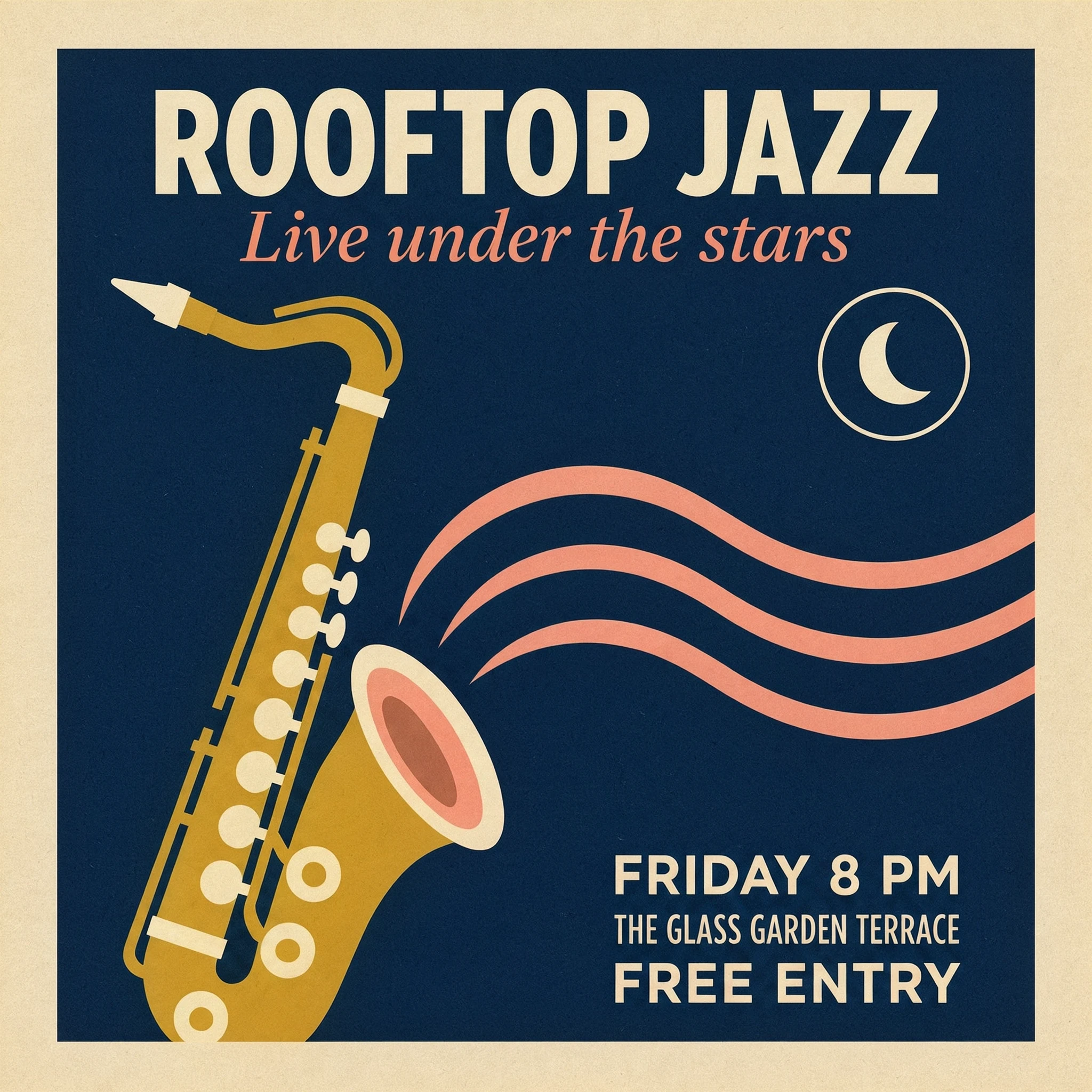
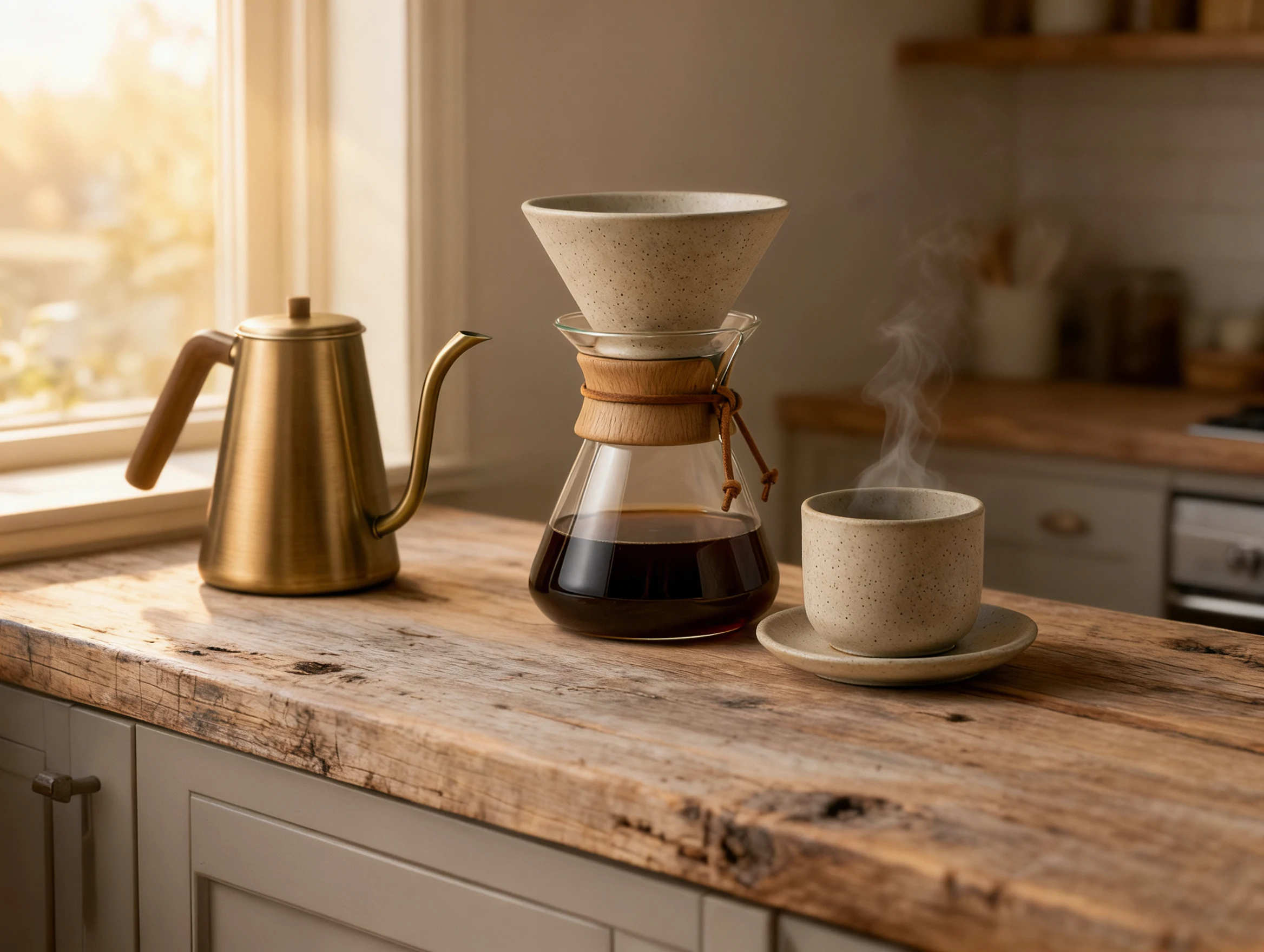
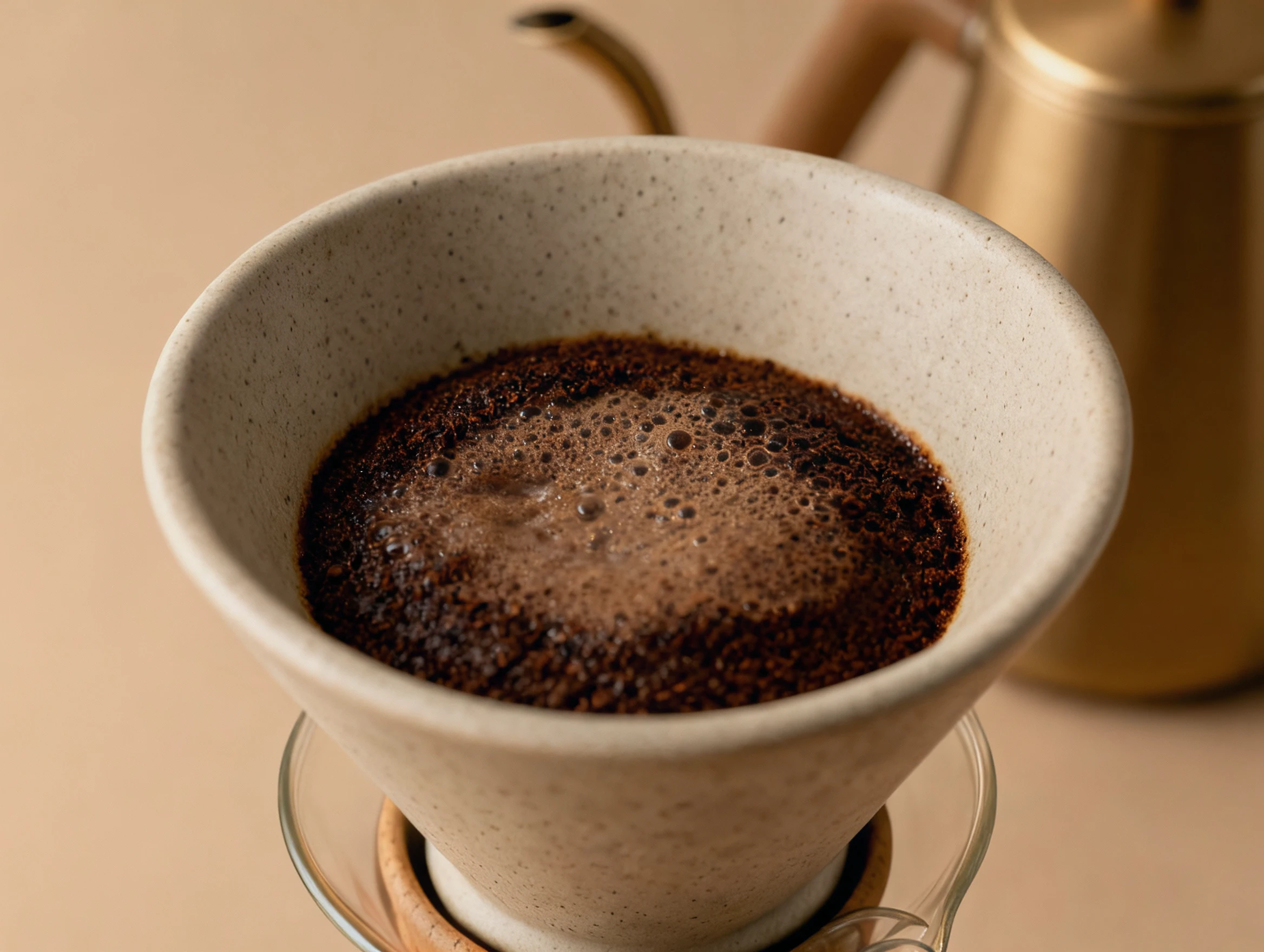
Four sample outputs covering product still life, crisp poster typography, reference-guided scene placement and macro surface texture.
Keep products and scenes consistent across edits
Upload clean JPG or PNG references and cite them in order as @image_1 and @image_2 so the model knows what to preserve and what to restage.
Reference images in order
Add up to 10 JPG or PNG files and refer to each one explicitly with @image_1 through @image_10 inside your prompt.
Preserve key geometry and text
State which labels, textures or proportions must stay locked while changing the backdrop, lighting or camera angle.
Verify against the source
Compare edges, reflections and quoted wording with your reference images before moving up to 4K or 8K.
Kling Image 4.0 controls on Flux2pro
Long briefs & multi-image edits
Write prompts up to 20,000 characters for complex scenes, or combine text instructions with up to 10 JPG or PNG references.
Nine aspect ratios & 2K–8K output
Select Auto or fixed ratios from 1:1 to 21:9, and choose 2K, 4K or 8K resolution depending on whether you are drafting or exporting.
Upfront per-request credit pricing
Each request returns one image and displays the exact credit cost—factoring in output resolution and reference count—before you submit.
How to generate with Kling Image 4.0
Write your brief and add references
Describe the scene, lighting and any quoted text. For edits, upload JPG or PNG references and mention @image_1, @image_2 in order.
Set aspect ratio and resolution
Pick an aspect ratio (or Auto) and start at 2K to test layout, then switch to 4K or 8K once the composition works.
Check the quote and inspect output
Confirm the credit badge on the button, generate your image, and inspect typography, materials and edges at full size.
Kling Image 4.0 FAQ
What workflows does this page support?
Use it for text-to-image generation or multi-reference image editing with up to 10 JPG or PNG inputs (max 10 MB each). Prompts support up to 20,000 characters.
Which options are not on this page?
One image is returned per request. Series mode, custom elements, masks and the separate long-image endpoint are not exposed here. At 8K the provider returns JPEG; 2K and 4K usually return PNG.
How are credits calculated?
The estimate includes the output resolution and each reference image. Check the displayed credits before creating; a revision is a new request.
Ready to test Kling Image 4.0?
Start with a 2K draft to check framing and wording, then scale up to 4K or 8K when you are ready for final output.